Image to Base64
Image to Base64 is one of 152 free DocuMind tools in the Image Tools category — browser-native image utilities — no uploads to any server. Convert images to Base64 encoded strings. It runs entirely in your browser: open the page, process your file/text, download the result — no installs, no account required, and no sensitive data uploaded to any server.
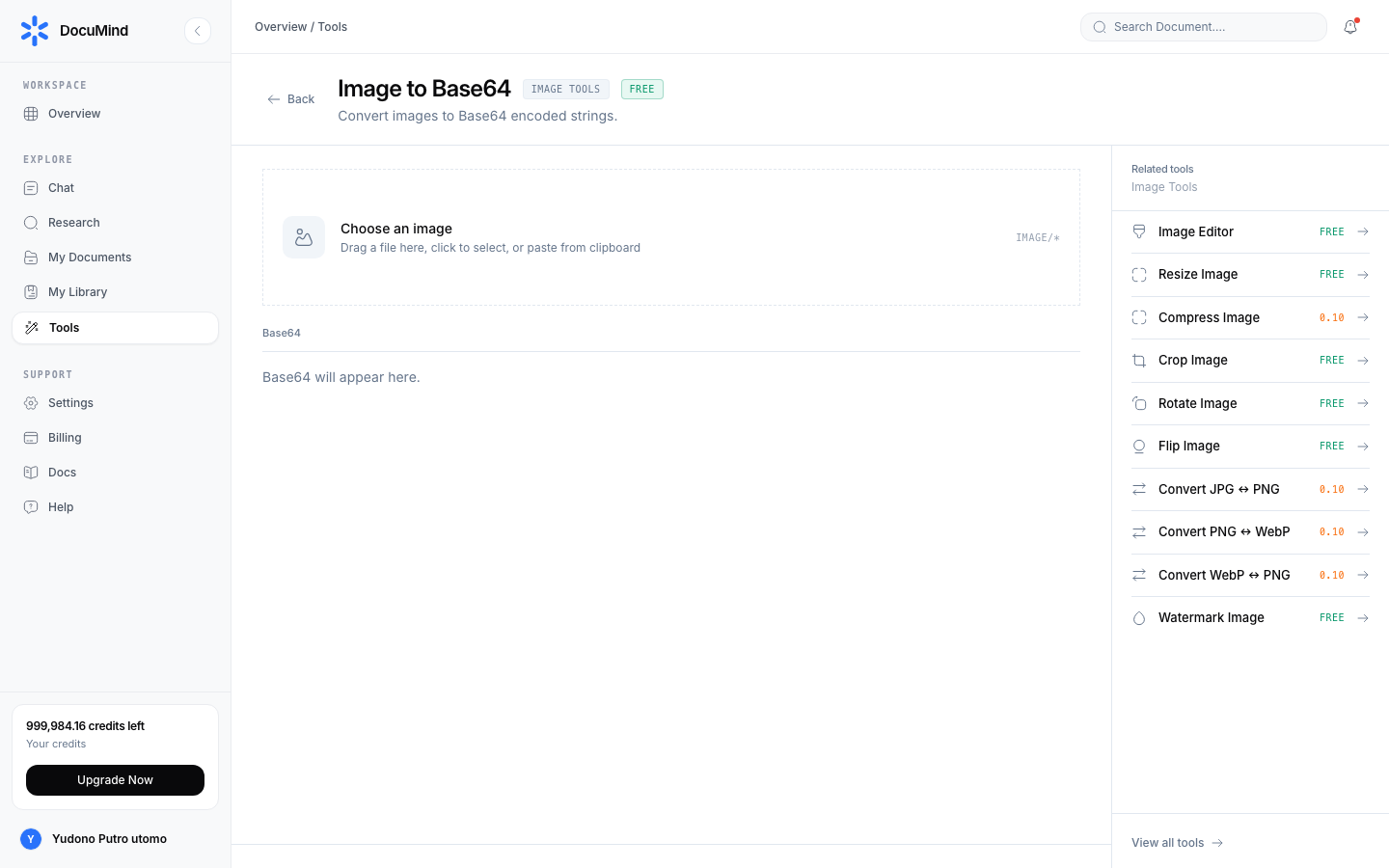
Tool URL: https://www.documind.id/dashboard/tools/image-to-base64
This guide: https://www.documind.id/en/docs/image-to-base64
This guide covers Image to Base64 in full depth: what it does, when to use it, the anatomy of every interface section, complete operating steps, real-world examples, technical limits, professional tips, answers to common questions, and links to related tools so your workflow never breaks.
Quick Summary
| Aspect | Details |
|---|---|
| Tool name | Image to Base64 |
| Category | Image Tools |
| Function | Convert images to Base64 encoded strings. |
| Tool page | https://www.documind.id/dashboard/tools/image-to-base64 |
| Guide page | /en/docs/image-to-base64 |
| Cost | Free |
| Account | Not required |
| Privacy | Processed locally in the browser (client-side) |
What is Image to Base64?
Image to Base64 solves one specific job well: convert images to Base64 encoded strings. Unlike generic online converters, DocuMind's implementation optimizes for three things: speed (no upload queues), privacy (files never transit to a server), and consistency (the same interface pattern across the whole tool family, so there is nothing new to learn).
It fits individuals and teams who process operational files daily — admins, teachers/lecturers, students, content creators, SEO specialists, and developers needing one-off utilities without opening an IDE or heavy app. Because it is free and sign-up-free, Image to Base64 is also ideal on shared computers (labs, client devices) without leaving credential traces.
Its place in the DocuMind ecosystem: the Tools layer (fast client-side utilities), distinct from AI Chat (language-model document analysis, costs credits) and Research/Library (journal search and saved sources). Rule of thumb: deterministic work (convert, count, format, validate) → use Image to Base64 for free; reasoning work (summarize, compare, answer) → go to AI Chat.
Interface Parts of Image to Base64
The https://www.documind.id/dashboard/tools/image-to-base64 page consists of five areas that always follow the same pattern. Knowing each area makes you 2–3x faster because you know exactly where to look when something goes wrong.
- Source image file (JPG, PNG, WebP, SVG, GIF depending on the tool)
- Quality / strength option (slider or numeric value, e.g. quality 0–100)
- Target dimensions, aspect ratio, or size presets (thumbnail, favicon, etc.)
- Output options: file format, file name, final resolution
- Process button, before/after preview, and download button
What each area means:
- Input/upload area — the data entry point. For file-based tools this is a drag-and-drop zone with a selected-file list (name, size, per-file remove). For text-based tools it is an editor with line numbers, paste-from-clipboard, load-sample, and a live character counter. The most common mistake here is a wrong format (e.g. uploading .doc when .pdf is expected) — read the accepted-format label under the zone.
- Settings panel — where you control tool behavior. Change one option, watch the preview, then run the final pass. Principle: start from the defaults (tuned for 80% of cases) and only change what you understand.
- Preview area — a mirror of the result before you download. For images/PDFs/tables it shows before/after; for text/code/SEO it shows syntax highlighting and validation flags. Never skip it — 90% of mistakes (flipped pages, wrong delimiter, skipped headings) are visible here before the final file is produced.
- Result panel — an execution summary: input vs output size, rows/pages processed, duration, and warnings (e.g. pages skipped as corrupt). Copy these numbers into reports when documenting work.
- Action bar — Process, Copy, Download, Reset, and Sample buttons. The correct flow: fill input → set options → Process → check preview → Download/Copy. Reset restores defaults without refreshing.
Supported inputs are common image formats (JPG/JPEG, PNG, WebP; some tools accept SVG/GIF). Drag a file onto the drop zone or click to browse. All processing happens locally via the Canvas API — your files never leave your device.
The output is a ready-to-download image (PNG/JPG/WebP/ICO/Base64 string depending on the tool) with a visual before/after preview. Click Download to save; process the next file without refreshing.
How to Use Image to Base64
Follow these standard operating steps — the order is identical across all DocuMind tools so it is easy to memorize:
- Open the tool page. Visit https://www.documind.id/dashboard/tools/image-to-base64. No login needed; the page is ready immediately. (Dashboard users can also open it via Tools → Image Tools → Image to Base64.)
- Prepare the input. Supported inputs are common image formats (JPG/JPEG, PNG, WebP; some tools accept SVG/GIF). For best results, use final files/text (not drafts that will still change) to avoid rework.
- Set the options. Walk the settings panel top to bottom; change only what you understand. When in doubt, keep defaults and run once to see the baseline.
- Click Process. Execution is local — for large files (tens of MB) allow a few seconds; do not close the tab while the progress indicator runs.
- Check the preview and result panel. Compare before/after, read the statistics (sizes, page/row counts), and confirm there are no red/yellow warnings.
- Download or copy the result. Click Download (files) or Copy (text/code). Rename the output on save so archives stay tidy (e.g.
report-final-image-to-base64.pdf). - Verify the final file. Open it in the target app (PDF viewer, spreadsheet, CMS, validator) before sharing. For official documents, visually check one sample page — do not rely on statistics alone.
On error, check three things in order: (a) input format matches the accepted label, (b) no conflicting options (e.g. a range beyond the total pages), (c) file size vs tab memory — try a smaller file or close other tabs.
Real-World Examples
Four concrete scenarios using Image to Base64 end to end:
- Prepping website image assets (compress + resize before CMS upload to lift PageSpeed scores).
- Cleaning promo material (watermarks, borders, rounded corners for marketplace/Instagram feeds).
- Deriving favicons and YouTube/blog thumbnails from one master image.
- Anonymizing images before sharing (strip location EXIF + blur sensitive areas).
Every scenario follows the same pattern — prepare final input, run defaults first, refine one option if needed, verify, then archive with a clear file name. After 2–3 uses, the whole flow usually takes under a minute.
Input/Output Formats, Limits, and Privacy
Input: Supported inputs are common image formats (JPG/JPEG, PNG, WebP; some tools accept SVG/GIF). Drag a file onto the drop zone or click to browse. All processing happens locally via the Canvas API — your files never leave your device.
Output: The output is a ready-to-download image (PNG/JPG/WebP/ICO/Base64 string depending on the tool) with a visual before/after preview. Click Download to save; process the next file without refreshing.
Practical limits to know:
- All computation runs in your device's browser tab — performance depends on your RAM/CPU, not a server. Very large files (hundreds of MB) are best processed on desktop, not phones.
- No server queues and no daily quota for this standard tool (unlike AI features that spend credits). Re-run as often as needed without worrying about credits.
- Sessions are ephemeral: closing or refreshing the tab clears un-downloaded inputs and results. Always download/copy before navigating away.
- This tool is deterministic (fixed rules), not generative — output is exactly reproducible given the same input and options. That is an advantage for administrative work requiring consistency.
Privacy: because processing is 100% client-side, sensitive files (IDs, financial reports, unpublished manuscripts) never need uploading to third-party services. You can use Image to Base64 on locked-down office networks as long as the tool page loads.
Tips & Best Practices
- Always start from defaults. Presets cover the majority case; change one variable at a time so you can trace what caused a change.
- Name files informatively. Include date and version (
2026-11-01-report-image-to-base64-v2) to avoid mixing with sources in Downloads. - Verify in the target app. Open results in the destination viewer/validator (not just the tool preview) before forwarding to managers, clients, or systems.
- Process final files, not drafts. Every source change means re-running from scratch — freeze content first, then convert/format.
- Use the Sample button to learn. Every tool ships a one-click sample; run it once to understand the expected input shape before using real data.
- Chain with neighboring tools. Common chains: clean → convert → validate → archive. See Related tools below for the most-used companions of Image to Base64.
- For high-volume repeat work, record the proven option combination (screenshot the settings panel) so teammates reproduce identical results without trial and error.
When to Use Image to Base64 vs Other Tools
| Need | Use this | Not this |
|---|---|---|
| Convert images to Base64 encoded strings. | Image to Base64 (this page) | — |
| Sibling utilities in the same category | See related list below | A different-category tool for a different file type |
| Language reasoning (summarize, answer, compare meaning) | AI Chat | This deterministic tool |
| Journal sources and DOI citations | Find Journal + Research | This conversion/counting tool |
| Long-term file management and archiving | Library + My Library | This single-use tool page |
The principle is simple: deterministic → Tools (free); reasoning → AI Chat/Research (credits); archiving → Library. Image to Base64 sits in the first box — fast, free, reproducible.
Image to Base64 FAQ
Is Image to Base64 free? Yes. All 152 DocuMind tools including Image to Base64 are free within fair use, with no sign-up required and no AI-credit deductions.
Are my files uploaded to a server? No. Image to Base64 processes input directly in the browser (client-side). Files never transit to DocuMind servers or third parties during core processing.
Do I need an account? Not required. Open https://www.documind.id/dashboard/tools/image-to-base64 and work immediately. Accounts are only needed for persistent dashboard features (Library, Chat history, Billing).
Why did my result fail/error? Three most common causes: (1) input format mismatches the accepted label, (2) conflicting options (e.g. range beyond totals), (3) file too large for tab memory. Fix in that order, starting with the file format.
Can I use Image to Base64 on mobile? Yes for small-to-medium inputs. For large files or precision work (design, spreadsheets), prefer desktop for comfortable previews and option controls.
Related Tools on DocuMind
Most-used companions of Image to Base64 (same Image Tools category):
- Image Editor — Edit images with crop, rotate, text, shapes, filters and more.
- Resize Image — Resize images to any width and height. Maintains aspect ratio option.
- Compress Image — Reduce image file size significantly while maintaining quality.
- Crop Image — Crop images to remove unwanted areas or focus on a specific region.
- Rotate Image — Rotate images by any degree or flip horizontally and vertically.
- Flip Image — Flip images horizontally or vertically with one click.
Hub directory: Tools — index of 152 tools in 9 categories (Image, PDF, Text, Developer, CSV, SEO, Document, Archive, Utilities).
Complementary layers:
- Tools — directory of 152 free DocuMind tools
- Dashboard — workspace control center and statistics
- AI Chat — document Q&A with page citations
- Library (My Documents) — manage files and generated outputs
- Billing — remaining credits and top-ups
Important Links
- Run the tool: https://www.documind.id/dashboard/tools/image-to-base64
- This guide:
/en/docs/image-to-base64(share this URL with teammates as an SOP) - Directory: Tools · Dashboard · AI Chat · Find Journal · Research · Library · My Library · Billing · Authentication
Conclusion
Image to Base64 — convert images to Base64 encoded strings. — is a small utility that saves dozens of minutes daily when used right: open the page, prepare final input, run defaults, verify the preview, download with a tidy file name. Free, private (client-side), and consistent with the whole DocuMind tool family, there is no reason to install single-use apps or upload sensitive documents to foreign converters. Bookmark https://www.documind.id/dashboard/tools/image-to-base64 and link this guide as your team SOP.
Related keywords: image to base64 guide, how to use image to base64, image-to-base64 documind, free online image tools, convert images to base64 encoded strings.