Authentication
Every DocuMind sign-in flow: email sign-up, sign-in, forgot password, reset password, and Continue with Google. This page dissects each screen, the exact click order, and fixes for common problems — so you never get locked out.
Quick Summary
| Screen | URL | Purpose |
|---|---|---|
| Sign in | https://www.documind.id/auth/signin | Sign in with email+password or Google |
| Sign up | https://www.documind.id/auth/signup | Create a new account (instantly active) |
| Forgot password | https://www.documind.id/auth/forgot-password | Request a reset link by email |
| Reset password | https://www.documind.id/auth/reset-password?token=... | Set a new password |
| Landing after sign-in | https://www.documind.id/dashboard | Control center (Dashboard) |
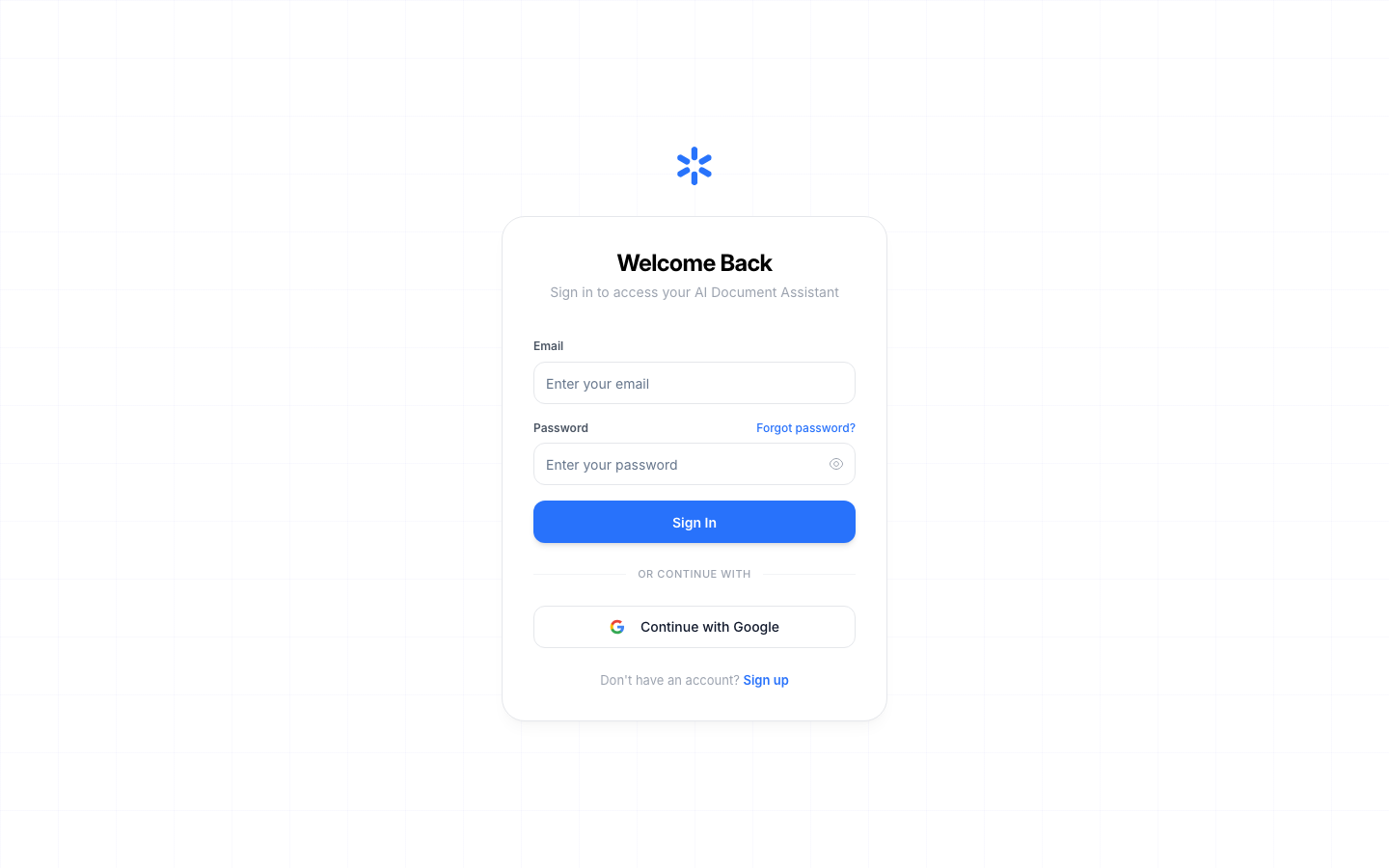
Sign-In Page
URL: https://www.documind.id/auth/signin
Screen parts:
- Email field — your registered email. Domain casing does not matter.
- Password field — minimum 8 characters at sign-up. Click the eye icon to show/hide.
- Sign In button — validates credentials, creates a session, redirects to
/dashboard. - Continue with Google — one-click OAuth flow (see Google section below).
- Forgot Password link — starts the reset flow.
- Sign Up link — for new users.
Email sign-in steps:
- Fill in Email and Password, click Sign In.
- On success you land on
/dashboard. On failure, read the on-screen error (e.g. wrong credentials) and retry — do not create a duplicate account with the same email. - If the page refreshes with no clear message, make sure browser popups are not blocked for this domain and try a regular (non-private) window once to rule out blocker extensions.
New Account Sign-Up
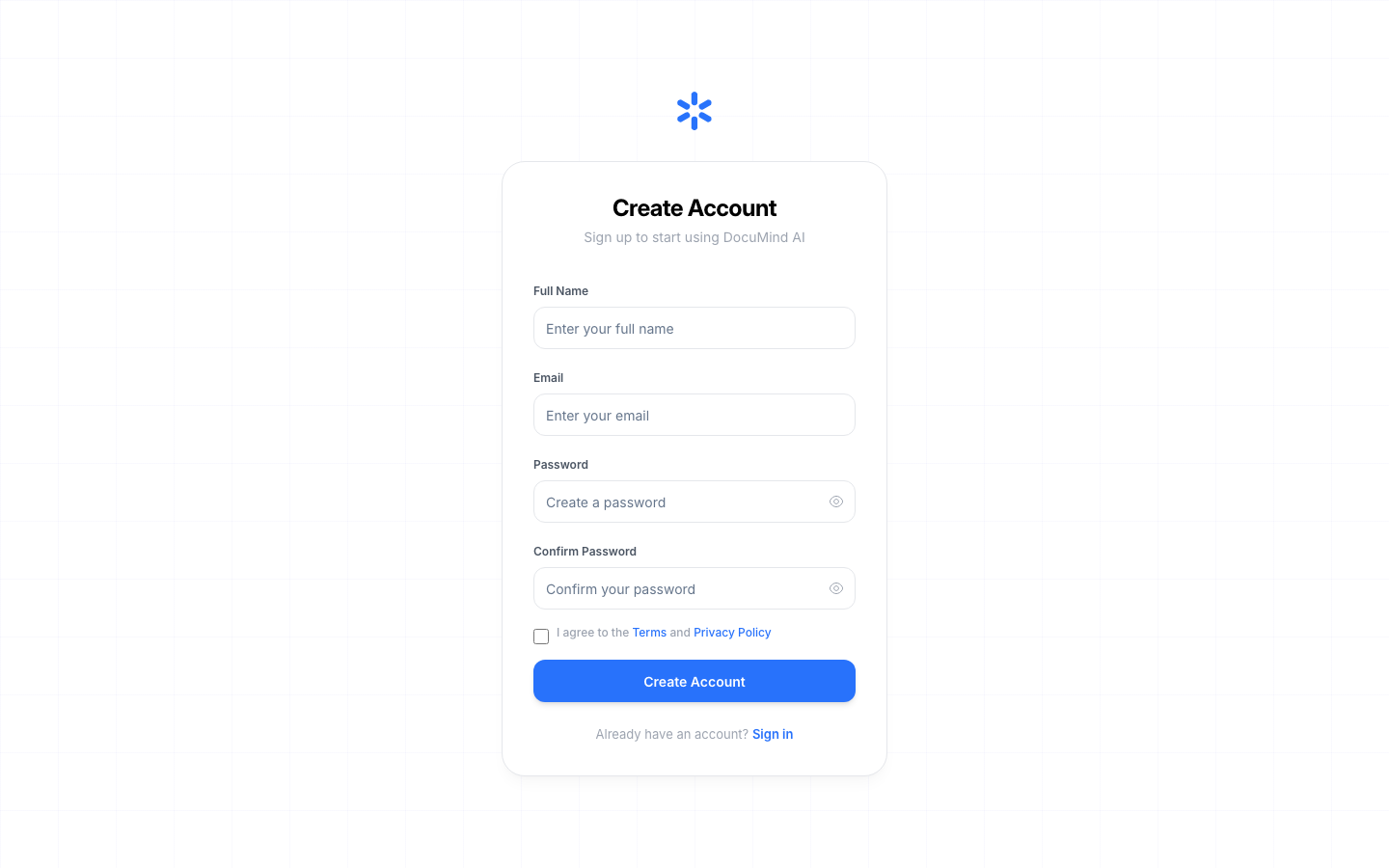
URL: https://www.documind.id/auth/signup
Screen parts:
- Name field — display name shown in the sidebar and avatar (changeable anytime in Account).
- Email field — must be active; used for password resets and notifications.
- Password field — minimum 8 characters; mix letters, numbers, and symbols.
- Sign Up button — creates an instantly-active account and signs you into the dashboard.
- Continue with Google — one-click alternative with no form to fill.
Steps:
- Fill in name, email, and password (min. 8 characters).
- Click Sign Up — the account is active immediately.
- Or sign up via Continue with Google in one click — name and email autofill from Google.
Forgot Password
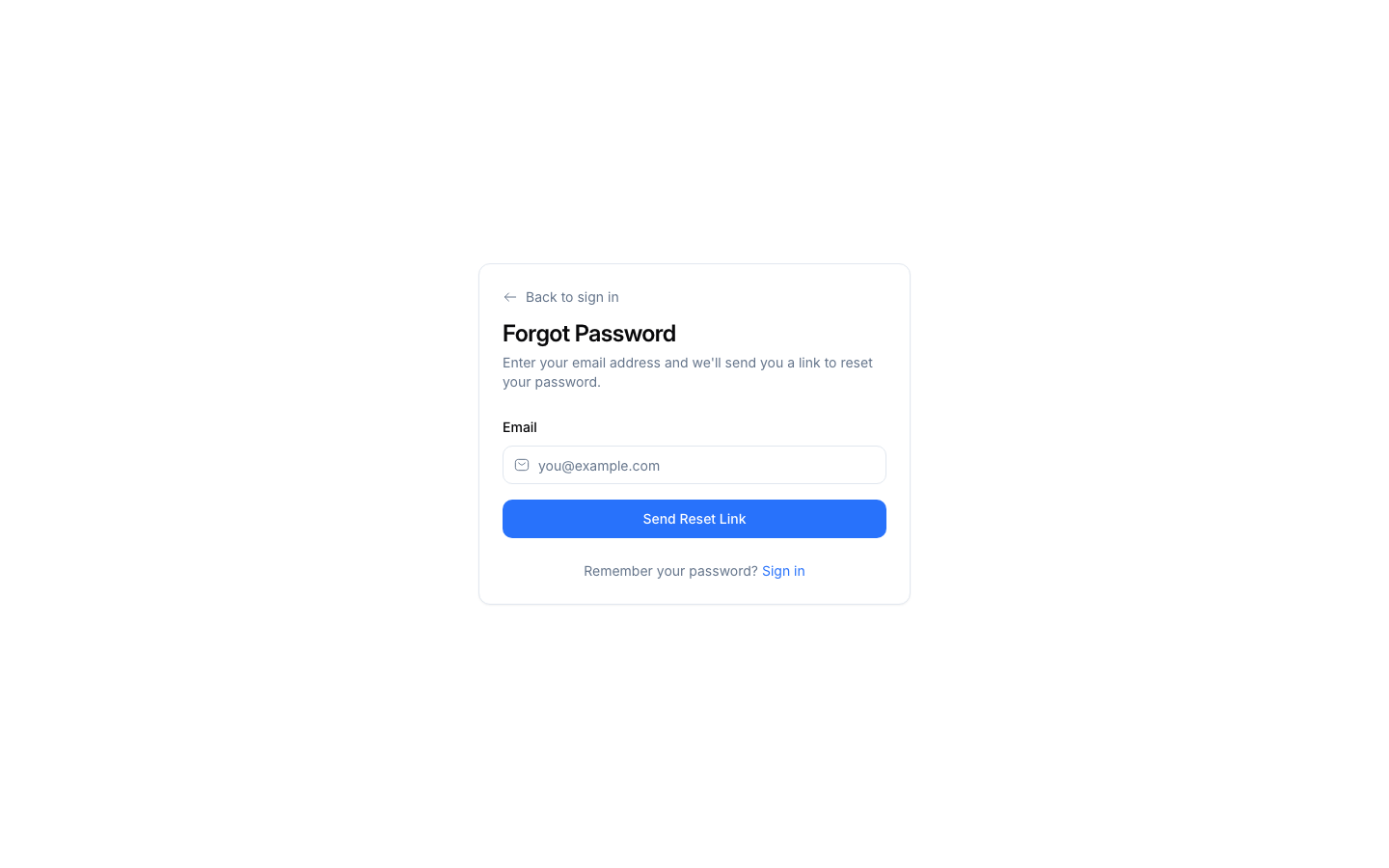
URL: https://www.documind.id/auth/forgot-password
Parts:
- Email field — enter exactly the email you registered with.
- Send Reset Link button — emails a time-limited reset link.
- Status message — confirms the email was sent (check spam if it does not arrive).
Steps:
- Enter your registered email, click Send Reset Link.
- Open the email and click the link promptly (links expire; request a new one from the same page if needed).
- Check spam/promotions folders if nothing arrives within minutes.
Reset Password
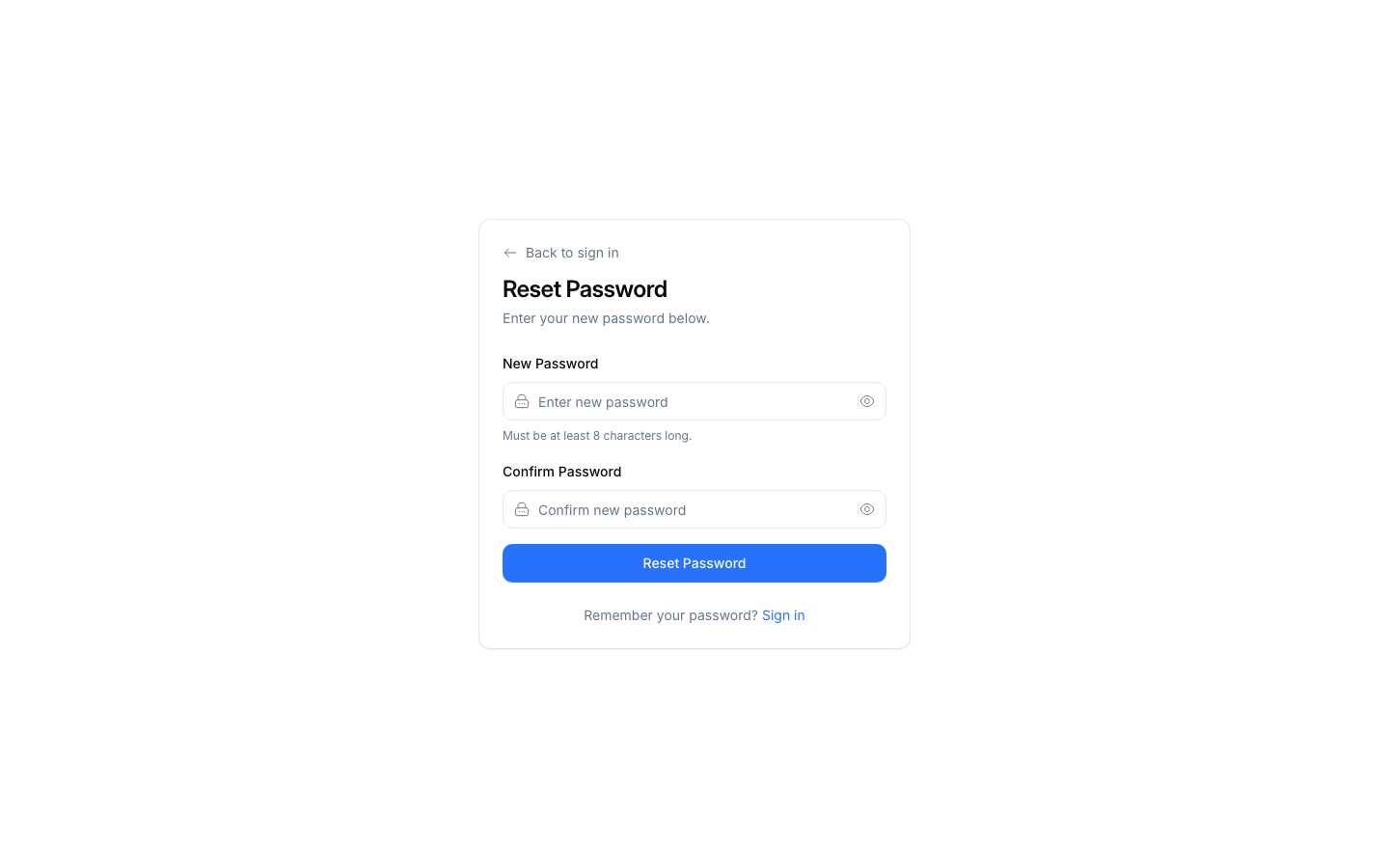
URL: https://www.documind.id/auth/reset-password?token=...
- Enter the new password twice (both fields must match exactly).
- Click Save — you can immediately sign in with the new password.
- The URL token is single-use and time-bound; never share reset URLs or bookmark them.
Continue with Google (OAuth)
Available on both sign-in and sign-up pages:
- Click Continue with Google — a Google popup appears.
- Pick your Google account and approve basic permissions (name, email).
- A session is created automatically and you land on
/dashboard— no extra password to remember.
Common issues: popup blocked (allow popups for www.documind.id), wrong account selected (sign out of the wrong Google session in another tab, retry), window closed early (click the Google button again).
New-User Walkthrough (End to End)
Scenario: a final-year student adopting DocuMind for a thesis.
- Open
https://www.documind.id/(Landing Page), click Sign Up. - Choose Continue with Google → pick campus account → land on dashboard.
- Empty stats on Dashboard are normal for new accounts.
- Upload one journal PDF to Library, open AI Chat, ask about the journal.
- Save supporting papers from Find Journal to My Library.
- Total time from sign-up to first answer: under 10 minutes.
Session & Account Security
- Passwords are stored hashed; support cannot see your password — always use the reset flow.
- Never share
?token=...reset links; treat them as temporary passwords. - Sign out after using shared/lab devices.
- If you receive an unrequested reset email, ignore it and make sure your password is strong and unique.
Troubleshooting
| Symptom | Common cause | Fix |
|---|---|---|
| Google popup missing | Popup/extension blocker | Allow popups for the domain, temporarily disable blockers |
| Reset link unusable | Expired / already used | Request a new link on the forgot-password page |
| Reset email missing | Wrong address / spam | Check spelling, spam folder, wait a few minutes |
| Correct login fails | Caps-lock / wrong email | Double-check, use reset if unsure |
| Bounced back to login | Cookie/session issue | Try a regular window, clear domain cookies |
Authentication FAQ
Is sign-up free? Yes. Starter credits follow the current plan terms and are visible in Billing.
Can one email back two accounts? No. One email maps to one account. Use a different email for a separate account.
I forgot which email I registered with — what now? Search your inbox for DocuMind welcome/invoice emails, or contact support via Dashboard → Support with requested proof of ownership.
Is Google sign-in safe? Yes. DocuMind uses the official Google OAuth flow; your Google password is never touched or stored by DocuMind.
Where do I go after signing in? To the Dashboard — stats, search, and navigation to everything.
Important Links
- Overview · Authentication · Account · Billing · Landing Page
- Dashboard · AI Chat · Research · Find Journal
- Library · My Library · Tools
Keywords: documind login, documind sign up, forgot password documind, continue with google, reset password.