Account
Manage your user profile: name, photo, and account information. This page is small but important — the name and photo you set here appear across the dashboard (sidebar, avatar, activity), so set it once and forget it.
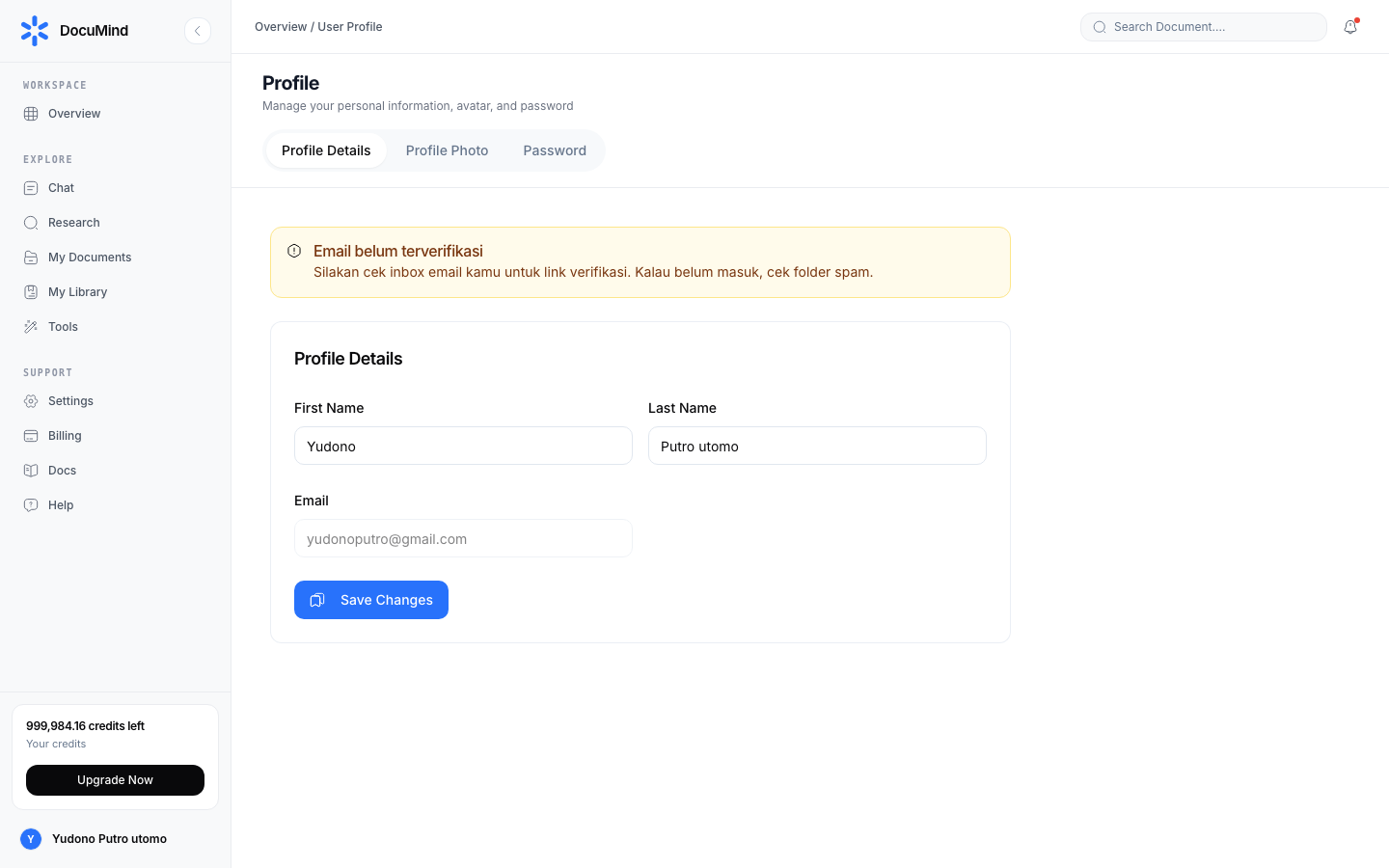
URL: https://www.documind.id/dashboard/profile
Quick Summary
| Aspect | Details |
|---|---|
| Page | /dashboard/profile |
| Editable | Display name, profile photo |
| Read-only | Email, role, join date |
| Effect | Instantly visible in the sidebar (avatar + name) after Save |
Profile Page Parts
- Identity card — large avatar, display name, email. Exactly how the system sees you.
- Display Name field — free to change; use your real or professional name. Avoid odd characters that complicate search.
- Profile Photo — click to upload (JPG/PNG). Square photos crop best; face centered. Need to shrink first? Use free Resize Image or Crop Image before uploading.
- Account info (read-only) — email, role, join date. Email is the login identity and is not changed here.
- Save button — persists changes, visible in the sidebar instantly with no refresh.
How to Manage Your Profile
- Open
https://www.documind.id/dashboard/profile. - Change display name and/or profile photo (prep a square file first — crop with Crop Image, compress with Compress Image if oversized).
- Re-check name spelling — it shows across the dashboard.
- Click Save — sidebar avatar + name update immediately.
- Review email, role, and join date to confirm you are in the right account (matters when managing multiple client accounts).
Example Scenarios
- Lecturer preparing a class account: match the display name to the official campus name for easy recognition when sharing documents.
- Multi-client freelancer: confirm the profile email is correct before downloading usage reports for invoicing (Billing).
Professional Profile Tips
- Use a clear face photo for collaboration/client accounts; default avatars are fine for personal use.
- Match your display name to official documents when the account is used for academic/business correspondence.
- For team accounts, set a naming convention early (e.g.
Name — Division) for recognizable activity logs.
Related Pages
- Forgot credentials? Back to Authentication.
- Usage and plans? See Billing.
- Whole dashboard picture? See Dashboard.
Account FAQ
How do I change my profile photo?
Open /dashboard/profile, click the photo area, pick a JPG/PNG, then Save. Pre-crop with Crop Image if needed.
Can I change my login email? Email is the account identity and is not editable on the profile page. If a change is mandatory (e.g. old email retired), contact support via Dashboard → Support.
Why is my sidebar name not updated? Make sure you pressed Save with a working connection. Refresh; server-persisted changes survive across devices.
Can I change my role myself? No. Roles are system/admin-assigned. View yours on the profile page; request changes via support if needed.
Photo upload fails — why? Use a reasonably-sized JPG/PNG. Compress first with Compress Image if the file is too large.
Important Links
- Overview · Authentication · Account · Billing · Landing Page
- Dashboard · AI Chat · Research · Find Journal
- Library · My Library · Tools
Keywords: documind profile, change account name, change profile photo, documind account settings.