AI Chat
Talk to your documents: pick a model, attach files, receive streaming answers with page citations, track agent progress per step — then ask AI to draft documents, data tables, and slide outlines with previews resembling the originals, revisable through follow-up chat and downloadable.
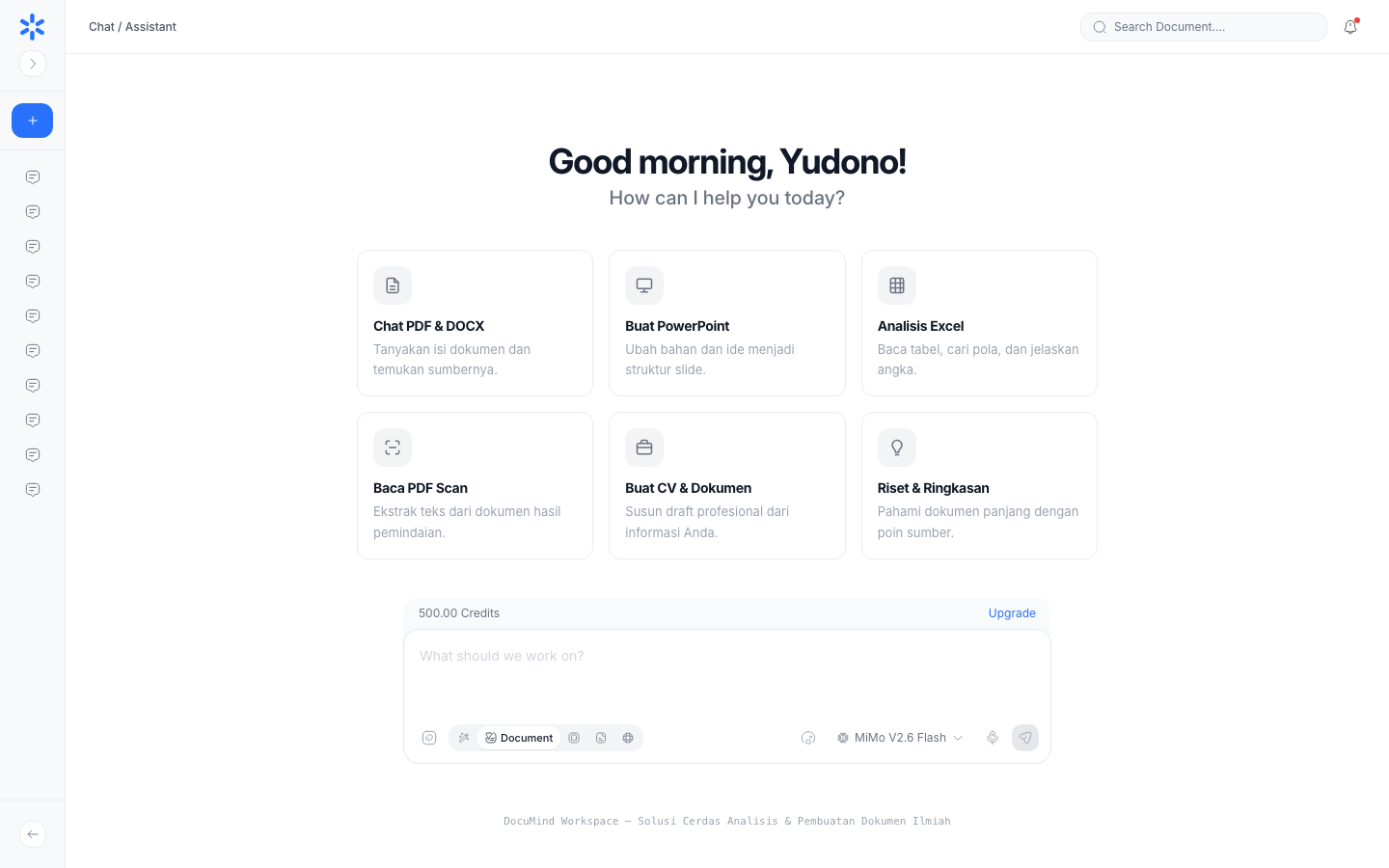
URL: https://www.documind.id/dashboard/chat
Quick Summary
| Capability | Location | Output |
|---|---|---|
| Document Q&A | /dashboard/chat | Streaming answers + [D1], [D2] citations |
| Agent task detail | /dashboard/task/:sessionId | Per-step progress + durations + output files |
| Document drafts | From chat | Original-like preview, revisable & downloadable |
| Tables & data grids | From chat | Grid preview, CSV-downloadable |
| Presentation outlines | From chat | Per-slide preview, ready to copy |
The Chat Page
URL: https://www.documind.id/dashboard/chat
Page parts:
- AI model picker — switch models (e.g. mimo, GPT): light models for quick questions, large models for long-document analysis.
- Chat box + slash commands — type questions or use
/for quick commands (summarize, extract, compare). Slash commands beat typing long instructions. - Document attachments — attach files from My Documents so answers ground on file context, not generic model knowledge.
- Streaming answer area — answers stream via SSE (word by word) with clickable
[D1],[D2]citations jumping to source pages. Click every citation to verify — never quote answers without checking them. - Session sidebar — every session auto-saves. Deleting a session always asks for a confirmation dialog first. Name sessions clearly (topic + date) when juggling many documents.
How to use chat:
- Pick an AI model in the model picker.
- Type a question or use
/slash commands. - Attach documents from My Documents when file context is needed.
- Read the streaming answer; click
[D1],[D2]citations to verify against source pages. - Follow up with narrowing questions ("focus on Chapter 3", "compare with appendix B").
Good vs weak questions:
- Weak: "Explain this document." (too broad, generic answer)
- Good: "Summarize Chapter 3 in 5 bullets + cite the source page per bullet."
- Good: "Extract every budget figure in appendix B into a table: item, value, page."
- Good: "Compare definition X in document A vs document B and highlight differences."
Agent Task Detail
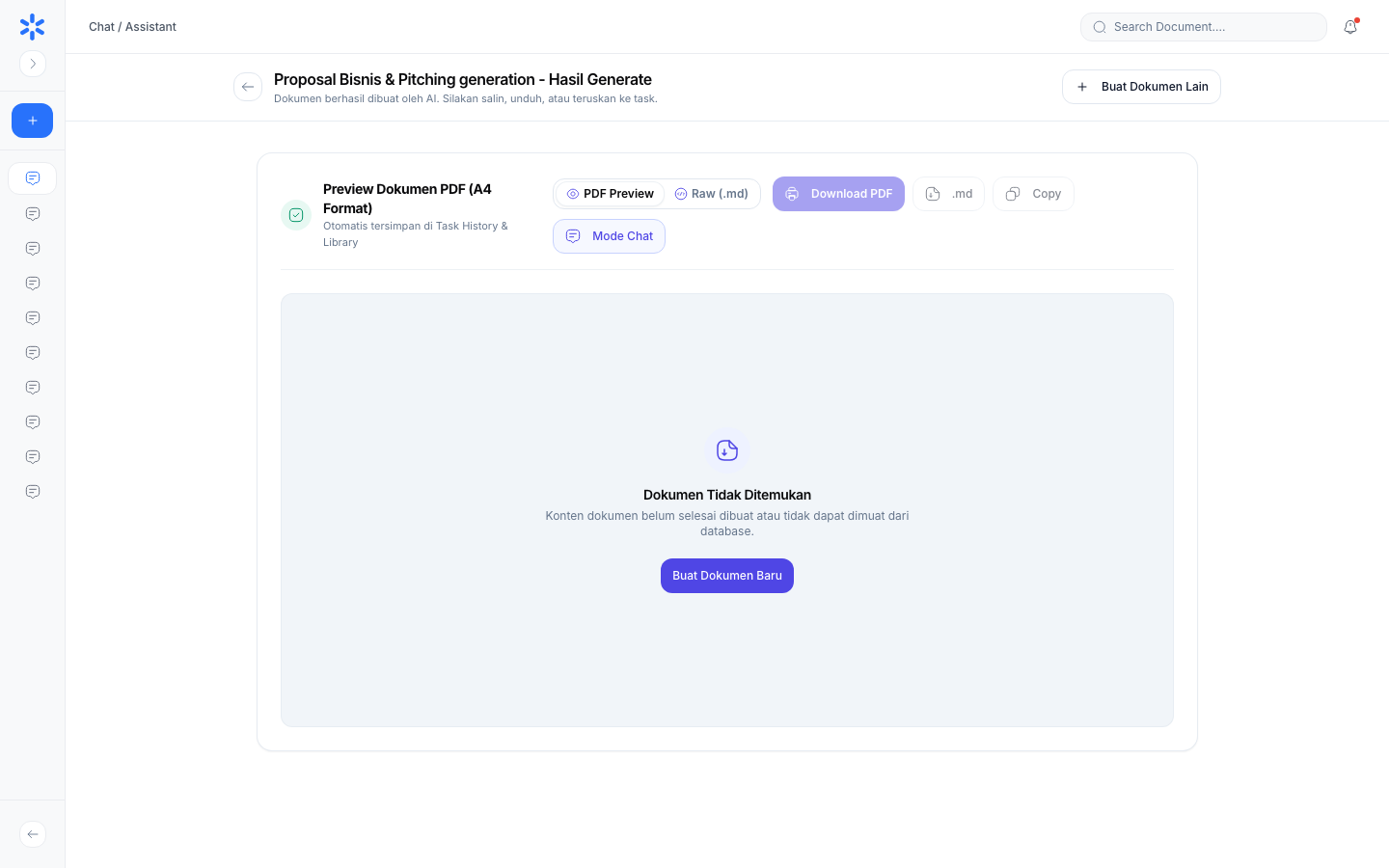
URL: https://www.documind.id/dashboard/task/:sessionId
For heavy jobs (long summaries, complex extraction, research), chat runs as a multi-step agent task. Page parts:
- Step list — each step shows operation name and status (running/done/failed).
- Live running duration — each step shows its running duration (e.g.
thinking 51s) computed live from backend timestamps (now - timestamp), stopping when the next step starts. You see exactly where time goes. - Per-step output files — view and download each step's result (not just the final), useful for audits and partial reuse.
- Stable workspace — the
sess-<session_id>working folder is never auto-deleted; only cleaned when untouched for > 1 week via cron. Come back anytime, files remain. - Error masking — technical errors are masked; users see only friendly messages, never provider stack traces. On failure, retry the step or simplify the request.
Document Drafts from Chat
The biggest time-saver: beyond answering, chat can draft content rendered as a preview resembling the original look — then you revise through follow-up chat ("add a methodology section", "make it more formal", "shorten to 1 page") and download the result.
Document Preview (Original-Like Look)
Ask in chat: "Draft a 2-page executive summary of this document" or "Write an offer letter based on the attachment". The result renders as a document preview resembling the original appearance — headings, paragraphs, lists, and tables reading like a word processor — not raw chat text.
Preview-area parts:
- Preview body — tidy render: title, nested headings, justified paragraphs, bulleted/numbered lists, clearly-ruled tables.
- Structure navigation — for long drafts, headings act as a map for jumping between sections.
- Revision commands — continue in the same chat ("switch the greeting to formal", "add a comparison table in Chapter 2"); the preview updates without restarting from zero.
- Download & copy — copy contents or download as a file; polish conversions with Document Converter, Text to DOCX, or Markdown to PDF when a specific format is needed.
Uses: meeting notes into formal minutes, papers into 250-word abstracts (check with Word Counter), CV and cover-letter drafts, weekly reports from rough notes.
Table & Data-Grid Preview (Spreadsheet-Like)
Ask in chat: "Extract every invoice line into a table: no, description, qty, price, total" or "Compare these 5 papers: title, year, method, findings". The result renders as a spreadsheet-like data grid — headed columns and scannable rows, not paragraphs.
Its parts:
- Preview grid — headed columns, data rows, right-aligned numbers for easy comparison.
- Completeness check — ensure no cell that should be filled is empty; follow up ("fill the empty year column").
- CSV download — take results to a spreadsheet for further work: open with CSV Viewer, analyze with CSV Statistics, merge with CSV Merge, convert with CSV to JSON or JSON to CSV as needed.
Uses: monthly invoice recaps, survey-result tabulation, product-spec comparisons, structured bibliographies.
Presentation-Outline Preview (Slide-Order-Like)
Ask in chat: "Build a 10-slide presentation from this report" or "Draft opening + body + closing slides for the briefing". The result renders as a per-slide preview resembling original deck order — slide titles, bullets, notes — so the story arc can be judged before moving to a presentation app.
Its parts:
- Slide list — each slide clearly titled with 3–5 bullets (readability rule of thumb).
- Story arc — opening (problem/goal) → body (data/arguments) → closing (recommendations/actions). Reorder via chat ("move key findings to slide 2").
- Copy to presentation — copy slide by slide into your favorite presentation app; adjust theme and visuals there.
Uses: policy-briefing slides, research-proposal pitches, monthly recaps for leadership.
Real-World Flows
Student dissecting 3 journals (45 min): attach 3 PDFs → "summarize each in 5 bullets + source pages" → "compare their methods in a table" → download the table → verify citations one by one via [D1] → save papers to My Library.
Admin recapping invoices (20 min): attach 12 invoice PDFs → "extract into a table: no, date, vendor, total" → download CSV → open in CSV Viewer → total up and archive in Library.
Job seeker (30 min): paste raw experience → "draft a 1-page CV + formal cover letter" → revise via chat ("emphasize experience X") → download → length-check with Word Counter → finalize with Text to DOCX.
Tips & Best Practices
- Specify output format up front. "Answer in a table / 5 bullets / 1-page draft" yields one-shot results without wasteful iterations (Billing).
- Attach only what is relevant. 2–3 focused documents beat 20 mixed files — sharper answers, fewer credits.
- Verify every important citation. Click
[D1],[D2]before citing into papers/official reports. - Revise incrementally, never restart. "Shorten section 2" is cheaper and more consistent than requesting a fresh draft.
- Name sessions clearly.
Thesis-Ch2-2026-11-01beatsNew Chatin the sidebar. - Separate exploration vs final chats. A free chat for digging; a clean new chat for the final draft, keeping context unpolluted.
- Finish with tools. Count words (Word Counter), convert formats (Document Converter), tidy markdown (Markdown to HTML) — all free.
Limits to Know
- Every model call spends credits per tokens — track in Billing.
- Models can err (hallucinate): citations exist to be verified, not decorated. For critical claims, always check source pages.
- Technical errors are masked into friendly messages — on failure, simplify or split into smaller steps.
- Session workspaces are cleaned when untouched for > 1 week — download important files to Library before that.
AI Chat FAQ
Which model should I pick? Light ones for quick questions and short drafts; large ones for long documents and complex analysis. When unsure, start with the default.
Can chat read many documents at once? Yes, attach several files. Practical limit: more context costs more and generalizes answers — prioritize relevance.
How do I ensure accurate answers?
Click every [D1], [D2] citation and read the source page. Ask the AI to cite pages for each key claim.
Can chat outputs be downloaded? Yes — document drafts, tables (CSV), and slide outlines can be copied/downloaded from their preview areas.
Deleted session — recoverable? Deletion asks for confirmation first. Once confirmed, sessions are unrecoverable — download important outputs to Library habitually.
Does chat spend credits? Yes, per processed tokens. Do deterministic work (convert/count/format) in the free Tools.
Important Links
- Overview · Authentication · Account · Billing · Landing Page
- Dashboard · AI Chat · Research · Find Journal
- Library · My Library · Tools
Keywords: documind ai chat, ask documents, page citations, summarize documents, ai document draft, extract tables, presentation outlines.